Check each file before you merge
FileFit checks each file as soon as you add it, one at a time, starting from the top of the list. A file with no PDF signature (%PDF-) in its first 1,024 bytes is marked as not a PDF, so a file that has only been renamed to .pdf is caught here too. The merge button stays off until every file has been checked.
A file is marked as damaged if it fails to open or has no pages at all, and its list row then shows “This PDF is damaged or can’t be opened. Open it in a PDF app, save a new copy, and add it again.” In that case, add the copy you saved again. If it still won’t open, get the original file again and check that it opens in a PDF viewer.
Checking and merging both happen inside your browser. The merge code never sends your files to a server.
Password and restricted PDFs are marked as errors
A PDF that is encrypted, either with a password or with security settings such as editing limits, shows this message in its list row: “This PDF has a password or security restrictions, so it can’t be merged. Remove them and add the file again.” FileFit also flags a PDF that opens without a password when it has those restrictions, so being able to open a file doesn’t mean it can be merged.
FileFit has no field for entering a password, so it does not unlock the file. It leaves the file out of the merge instead. If you have the right to open the document, unlock it or remove its restrictions in a PDF app, save a copy, and add that copy.
Flagged files stay in the list with their reason shown, and they are left out of the merge. If fewer than two PDFs can be merged, the merge button stays off. If only one PDF can be merged, FileFit shows “Add one more PDF to merge.”
Mixed page sizes and orientations are joined without adjustment
FileFit doesn’t block a file because its pages differ in size or orientation, so A4 pages and scanned pages can end up in the same file. The merge doesn’t resize pages or straighten a sideways one.
If the destination requires one page size or orientation, fix the source file in a PDF editor before you add it. After merging, open the result in a PDF viewer and check the size and direction of each page.
Pages are copied, not redrawn
The merge creates an empty PDF, then copies every page of each source file with the copyPages method of pdf-lib and adds the copies in order. No step turns a page into an image, so text stays text, and figures are carried over without being redrawn.
Because only pages are copied into the new document, bookmarks (the outline) are not carried over to the merged file. Form fields are not guaranteed to work as they did in the original, so if you need either one, add it back in a PDF editor after merging.
Pages appear in list order, from the top row to the bottom. All pages of the first file come first, followed by all pages of the next file.
What happened in a test run
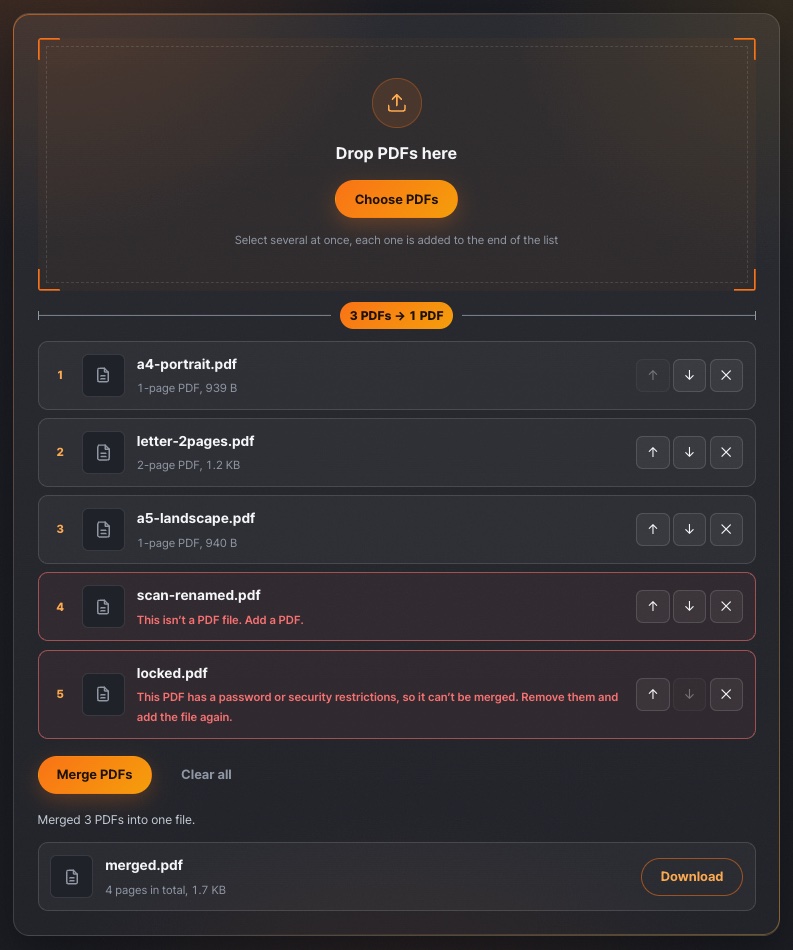
We added three test PDFs with different page sizes and two problem files to Merge PDF at once. The test PDFs were a one-page A4 portrait file, a two-page US Letter file and a one-page A5 landscape file. The problem files were a JPG photo renamed to .pdf and a PDF locked with an open password on macOS.
Before we pressed Merge PDFs, the renamed file showed “This isn’t a PDF file. Add a PDF.” and the locked PDF showed “This PDF has a password or security restrictions, so it can’t be merged. Remove them and add the file again.” After we pressed it, both files were left out, FileFit showed “Merged 3 PDFs into one file.”, and the result was merged.pdf with 4 pages in total at 1.7 KB. The page count matched the pages of the files without errors added together (1 + 2 + 1).
We then checked the size of every page in the merged file, and each one kept its original size. The US Letter pages and the wide A5 page follow the A4 page as they were, so if the destination requires one page size, fix the source files before you merge. Because the test files held only a few lines of text, the merged file came out smaller than the three originals added together (about 3.0 KB). When we ran the same test with PDFs that contain photos, the merged size was almost exactly the sum of the originals.
| File added | Shown in the list | In the merged file |
|---|---|---|
| A4 portrait test PDF | 1-page PDF, 939 B | Page 1, 210 × 297 mm, unchanged |
| US Letter test PDF | 2-page PDF, 1.2 KB | Pages 2 and 3, 216 × 279 mm, unchanged |
| A5 landscape test PDF | 1-page PDF, 940 B | Page 4, 210 × 148 mm, unchanged |
| JPG renamed to .pdf | Not-a-PDF error | Left out |
| PDF locked with an open password on macOS | Password or security restrictions error | Left out |
When the merged file is too large
FileFit doesn’t re-compress images or lower their quality, and it saves the file without any compression options. So the merge has no feature for reducing file size, and to make the file smaller you need a tool outside FileFit, such as a PDF editor, to process the originals or the merged file.
The list shows the page count and size of each file that passes the checks, so you can see which one is largest. You can only remove whole files from the list, with no way to pick individual pages out of a file. If you need to drop some pages, delete them in a PDF editor and save before you add the file.
If the merge itself fails, FileFit shows “The PDFs couldn’t be merged. Try fewer files or another browser.” Using fewer files is only a suggestion for trying again, and it does not make the final file any smaller.
Checklist after merging and before you submit
Download the result before you change the list, because changing the list clears the earlier result. Closing the page also clears the list and the result.
- Check that no error is still shown in the list, and remove any file you don’t need with the ✕ button.
- Check the order with the ↑ and ↓ buttons. The merged file follows the list from top to bottom.
- Press Merge PDFs, then add up the page counts of the files that show no error and check that the total on the result row matches.
- Check that the size on the result row is within the limit in the submission guidance. If it isn’t, reduce the originals or the merged file using one of the methods described above.
- Download the file, open it in a PDF viewer from the first page to the last, and check the page order, the direction of each page, and whether text and images display correctly.
- The default name is merged.pdf, so rename the file to whatever the destination requires. Check the file format, size limit, and submission method in the destination’s latest guidance before you submit.