What a KB limit on an upload form means
KB, KiB, and MB all measure file size, but they count bytes differently. In the International System of Units (SI), the prefix kilo means 1,000, so one kilobyte (kB) is 1,000 bytes and one megabyte (MB) is 1,000,000 bytes. The International Electrotechnical Commission (IEC) defines one kibibyte (KiB) as 1,024 bytes and one mebibyte (MiB) as 1,048,576 bytes.
The US National Institute of Standards and Technology (NIST) explains the confusion caused by using megabyte for both 1,000,000 and 1,048,576 bytes, and distinguishes decimal from binary units. If the receiving site does not explain how it counts KB or MB, compare the byte count with the limit rather than relying only on the displayed number.
FileFit treats 1 KB as 1,000 bytes when it sets a target. Some systems count 1 KB as 1,024 bytes, so FileFit uses the stricter 1,000-byte basis, and the output stays under the limit on either basis. For example, a 200 KB target produces a file of at most 200,000 bytes.
Target sizes can be 50 KB, 100 KB, 200 KB (the default), 300 KB, 500 KB, 1 MB, or 2 MB, or you can type any whole number from 10 KB to 20,000 KB. The sizes on the result list divide by 1,024, so KB values look about 2.3% smaller than their 1,000-byte value, and MB values look about 4.6% smaller. Comparing those numbers with a 1,000-byte limit can make a file look smaller than it is, so when the limit is tight, check the exact byte count in the file information.
What happened in a test run
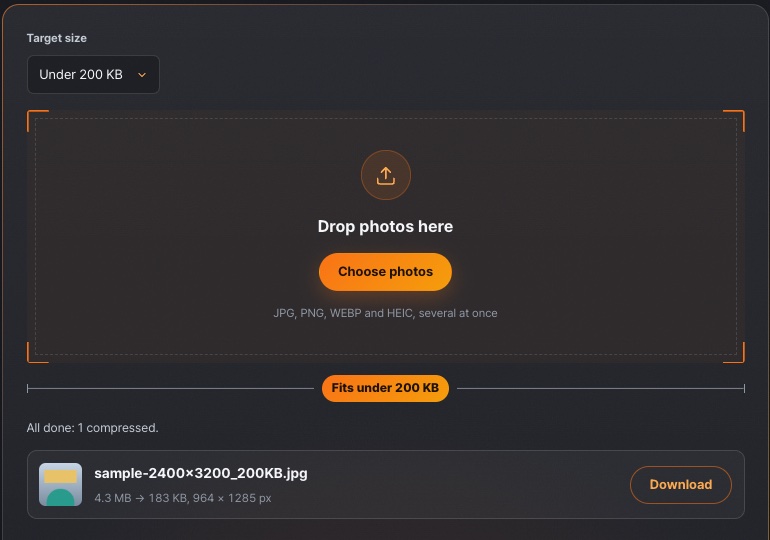
We ran FileFit on one sample JPG. The original was 2400 × 3200 pixels and 4.3 MB. With a target of under 200 KB, the result was 183 KB at 964 × 1285 pixels. The original was under the canvas area limit, so FileFit started at full size. The smaller width and height therefore mean that even quality 0.5 was over 200 KB.
The same photo gives a different result at a different target. Check the form’s limit first, then use that value as the target.
Quality changes before pixel size
FileFit normally starts from the photo’s original size, but scales photos over 16,777,216 pixels down first to fit the canvas area limit. At that starting size, it searches JPG quality settings between 0.5 and 0.92 for a high setting that fits the target. If quality 0.5 is still too large, it reduces pixel dimensions. It shows an error if it reaches the minimum side length or retry limit without fitting.
The HTML standard uses a quality setting between 0 and 1 for formats such as JPG and notes that implementations can interpret the same setting slightly differently. This number does not guarantee sharpness or acceptance by the receiving organization, so open the result and check it yourself.
If a re-encoded result shows the same pixel size as the original, only the quality changed. The result list does not show the original’s pixel size, so check the original’s width and height in its file information before you compare. If the pixel size is smaller, either quality 0.5 was still too large, or the photo had more than 16,777,216 pixels (4,096 × 4,096) and was scaled down at the start to fit the canvas area limit.
- Encode at the starting size, which is normally the original size, with quality 0.92. If the file is under the target, use that result.
- If it is still too large, encode at quality 0.5 at the same size. If that is also too large, recalculate the scale from the size ratio, reduce it a little more, and start again from step 1.
- If quality 0.5 fits, search between 0.5 and 0.92, halving the range six times, for a high quality setting that still fits under the target.
What a very small target does to quality
The quality setting never drops below 0.5, so a very small target forces the width and height to shrink. Fewer pixels mean less facial detail, and very low quality discards high-frequency detail (the fine patterns in an image), which can leave noise around contrasting edges, such as hair and clothing outlines, or make blocky shapes visible.
In FileFit, the shorter side never goes below 64 pixels, because an image that small is hard to recognize. If a smaller size would be needed, the photo’s row shows the error “The photo can’t get this small. Choose a larger target size.” The same message appears if repeated size reductions still do not fit.
- Set the target to the form’s limit, using a value from the list or a custom value. A lower target leaves less room for quality.
- Judge the photo by opening the downloaded file in a photo viewer at 100%, not by the thumbnail in the result list. Check the eyes, the edges of the hair, and the collar.
- If the edges are still smeared at the limit, use a different original photo. If the error message appears, check whether the form allows a larger target.
How JPG, PNG, and HEIC files are handled
A JPG that is already under the target is kept as the original file, with its original name, and is not re-encoded. A larger JPG is saved again as a new JPG, with the target number in KB added to the base name without the extension. For example, photo.jpg at a 200 KB target becomes photo_200KB.jpg.
PNG, WEBP, and other non-JPG formats are always saved as JPG, even when they are already under the target. JPG has no transparency, so transparent areas are filled with white. A PNG made for a transparent background therefore comes out with a white background, so if the form specifies a background color, check the result against that rule before you submit.
HEIC files are first opened with the browser’s built-in decoder. If that decoder cannot open the file, FileFit loads a separate HEIC decoder only when it is needed. Either way, the result is saved as a JPG. A non-HEIC file that the browser cannot open, or a HEIC file that neither decoder can open, shows the message “This file can’t be opened as a photo. Use JPG, PNG, WEBP or HEIC.”
Checks before you submit
Check the saved file in the order below before you upload it. Confirm the size and pixel rules against the form’s current instructions first.
- Read the size change and the width and height in the result list. If the form sets a minimum pixel size, confirm that the output still meets it.
- A JPG kept as the original shows no pixel size, so check its width and height in the file information instead.
- If the limit is tight, check the exact byte count of the downloaded file in its file information. The screen divides by 1,024, so its numbers look smaller than a 1,000-byte limit.
- Open the downloaded file in a photo viewer and check the orientation. FileFit has no rotation option, so if the result is sideways, rotate the original in a photo app and compress it again.
- Zoom the downloaded file to 100% and compare the eyes and hair edges with the original. If they look soft or blocky, follow the judgment steps above.
- Each re-save recompresses the JPG and lowers its quality again, so avoid editing or re-saving the compressed file. If you need changes, compress the original again.